Switching WooCommerce to HPOS: Process, Compatibility and Rollback
How to enable WooCommerce HPOS: check plugins, sync your orders, switch, test and roll back if needed. Including the matching WP-CLI commands.
Contents
HPOS (High-Performance Order Storage) means WooCommerce stores orders in their own database tables instead of the WordPress tables for posts. As of October 2026, HPOS has been the default for new installations since WooCommerce 8.2 (October 2023), but older stores are not switched automatically. You do that yourself in three steps: check your plugins, sync the orders into the new tables, switch. As long as compatibility mode is on, you can go back at any time.
What HPOS changes
Up to WooCommerce 8.2, orders lived as a custom post type in wp_posts, with their details in wp_postmeta. The same tables hold pages, posts, products and the data of many plugins. Every order adds to the pile that queries in the checkout and the order list have to work through.
HPOS creates four dedicated tables instead: wp_wc_orders, wp_wc_order_addresses, wp_wc_order_operational_data and wp_wc_orders_meta (the wp_ prefix may differ in your installation). According to the WooCommerce developer documentation, orders get their own indexes, there are fewer reads and writes on busy tables, and order data can be backed up and restored in a more targeted way.
In the admin, the order list looks almost the same afterwards. The switch mainly affects plugins and custom code that read orders directly from wp_posts.
Is my store already on HPOS?
Under WooCommerce > Settings > Advanced > Features you can see which order storage is active. The two options are “High-performance order storage (recommended)” and “WordPress posts storage (legacy)”. If HPOS is selected, you are done. If WordPress posts storage is selected, your store still runs the old way.
With command line access it is quicker: wp wc hpos status shows whether HPOS and compatibility mode are enabled and how many orders are still waiting to be synced.
Before the switch: check plugins and custom code
What holds up the switch is almost always extensions. A plugin that bypasses WooCommerce and reads orders straight from the database will see outdated data or none at all after the switch. Candidates are everything that works with orders: invoice and PDF plugins, legal compliance plugins such as Germanized or German Market in Germany, payment and shipping plugins, ERP or accounting connections and custom exports.
WooCommerce warns you itself: if an active plugin declares that it does not support HPOS, the option to switch is disabled, and the “View and manage” link lists the affected plugins. You can reach the same list directly at /wp-admin/plugins.php?plugin_status=incompatible_with_feature&feature_id=custom_order_tables.
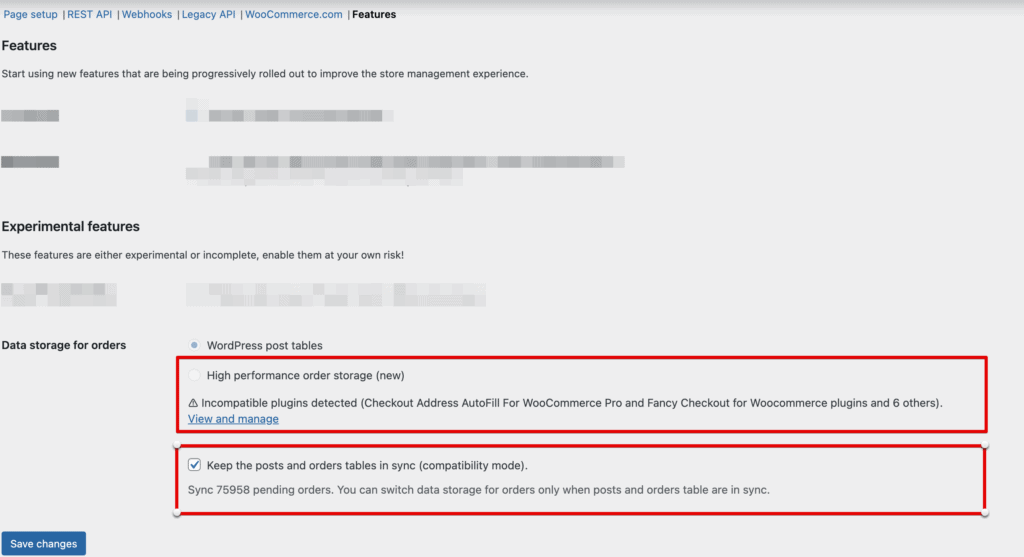
Do not rely on this warning alone. According to the WooCommerce HPOS recipe book, WooCommerce only shows compatibility information for plugins that declare “WC tested up to” in their file header. A plugin without it is missing from the list, even if it touches orders. The same recipe book has a search pattern for auditing your code for the affected functions.
Check custom code, such as snippets in functions.php or your own plugin, for these spots before the switch:
- Orders loaded with
get_post(): replace withwc_get_order(). - Orders queried with
get_posts()orWP_Queryusing theshop_orderpost type: replace withwc_get_orders(). - Metadata via
get_post_meta(),update_post_meta()ordelete_post_meta(): read and write it through the order object, then callsave(). - Custom SQL on
wp_postsorwp_postmetathat touches orders: rewrite it, with HPOS it reads the wrong tables. - Meta boxes and columns in the order list that hook into the old screen: with HPOS the order list has its own screen ID.
// old: update_post_meta( $order_id, '_my_field', $value );
$order = wc_get_order( $order_id );
$order->update_meta_data( '_my_field', $value );
$order->save();
Once the code is adapted, your own plugin declares compatibility with FeaturesUtil::declare_compatibility( 'custom_order_tables', __FILE__, true ). It then no longer shows up in the warning list.
Keep extensions with their own post types, such as Woo Subscriptions or WooCommerce Bookings, active during the switch. The WooCommerce HPOS documentation warns that deactivating them beforehand and reactivating them afterwards leads to data discrepancies. And every extension that needs an update for HPOS also needs a valid licence. What running costs add up that way is covered in What does a WooCommerce store cost?
Enable HPOS: the switch in six steps
- Make a full database backup and a staging copy of the store. All following steps run on the copy first.
- Update WooCommerce and all extensions and check the plugins as described above.
- Under Advanced > Features, tick compatibility mode and save. WooCommerce then copies the orders in the background, 25 orders per batch according to the documentation. You can follow the progress under WooCommerce > Status > Scheduled Actions. With many orders,
wp wc hpos syncon the command line is faster. - Once all orders are synced, select High-performance order storage and save. WooCommerce does not allow the switch before that.
- Test: one test order per payment method, the order list, invoices, emails, exports and the handover to shipping or your ERP.
wp wc hpos verify_datacompares all orders in both storages,wp wc hpos diffwith an order number shows the differences for a single order. - If everything works on the copy, repeat the switch on the live store, ideally at a time with few orders. Leave compatibility mode on afterwards.
WooCommerce itself advises keeping compatibility mode on for a while after the switch. I would turn it off at the earliest once the next invoicing run and the usual exports have gone through without discrepancies. It costs one extra write per order, and in return the way back stays a single click.
Rolling back if something breaks
As long as compatibility mode is on, WooCommerce writes every order to both storages. To go back, open Advanced > Features, select WordPress posts storage and save. If compatibility mode was already off, turn it back on first and wait until the sync has finished. Only then does WooCommerce allow the switch. On the command line, wp wc hpos disable stops with an error as long as orders are waiting to be synced.
Rolling back is not a permanent state. It keeps the store running until the plugin causing problems has been updated or replaced.
Cleaning up old order data
After the switch, the old order data stays in wp_posts and wp_postmeta. You can remove it with wp wc hpos cleanup all, but only when HPOS is on and compatibility mode is off. According to the documentation of the HPOS commands, the command deletes permanently and stops at orders whose old version is newer than the one in HPOS. Small placeholder records stay in wp_posts so that switching back remains possible.
Cleaning up only makes sense once the store has run on HPOS for a few weeks without issues, and only with a fresh backup. There is no hurry: the old data does not get in the way, it only takes up space.
Do it yourself or have it done
For a small store with up-to-date plugins and no custom code, the switch is done quickly, most of the time goes into testing. It gets more involved with many orders, plugins without HPOS support and code that reads orders directly from the database. For a switch to HPOS or the block checkout I plan 3 to 8 hours. Changes like this to the foundation are part of ongoing upkeep on WooCommerce. On Shopify the vendor handles them, and you pay a monthly platform fee instead. I compare both routes in Shopify or WooCommerce?
As a WooCommerce developer I switch stores to HPOS: check the plugins, adapt custom code, switch on a staging copy and only then on the live store. If your store is connected to an ERP, that interface is part of the test. How such connections are set up is covered in the article on the WooCommerce B2B store.