WordPress Multisite: When a Network Pays Off and When It Does Not
WordPress multisite runs several websites from one installation. When a network pays off, when separate installs are better and what to settle first.
Contents
A WordPress multisite network pays off when several websites belong together technically: the same theme, largely the same plugins and one team that maintains everything. Typical cases are country or location sites of one company, several brands with a shared look, or an association with many sub-sites built the same way. If the sites go their own ways, are meant to pass to other owners later, or one of them needs its own shop, separate installations are usually the better choice.
I know multisite from both directions. For the Swiss auction house Rapp Auktionen I separated a website from an existing multisite setup and have looked after it ever since. In July 2026 I handled the move of a multisite network for a specialist publisher, with the old platform switched off the following day.
What a multisite is technically
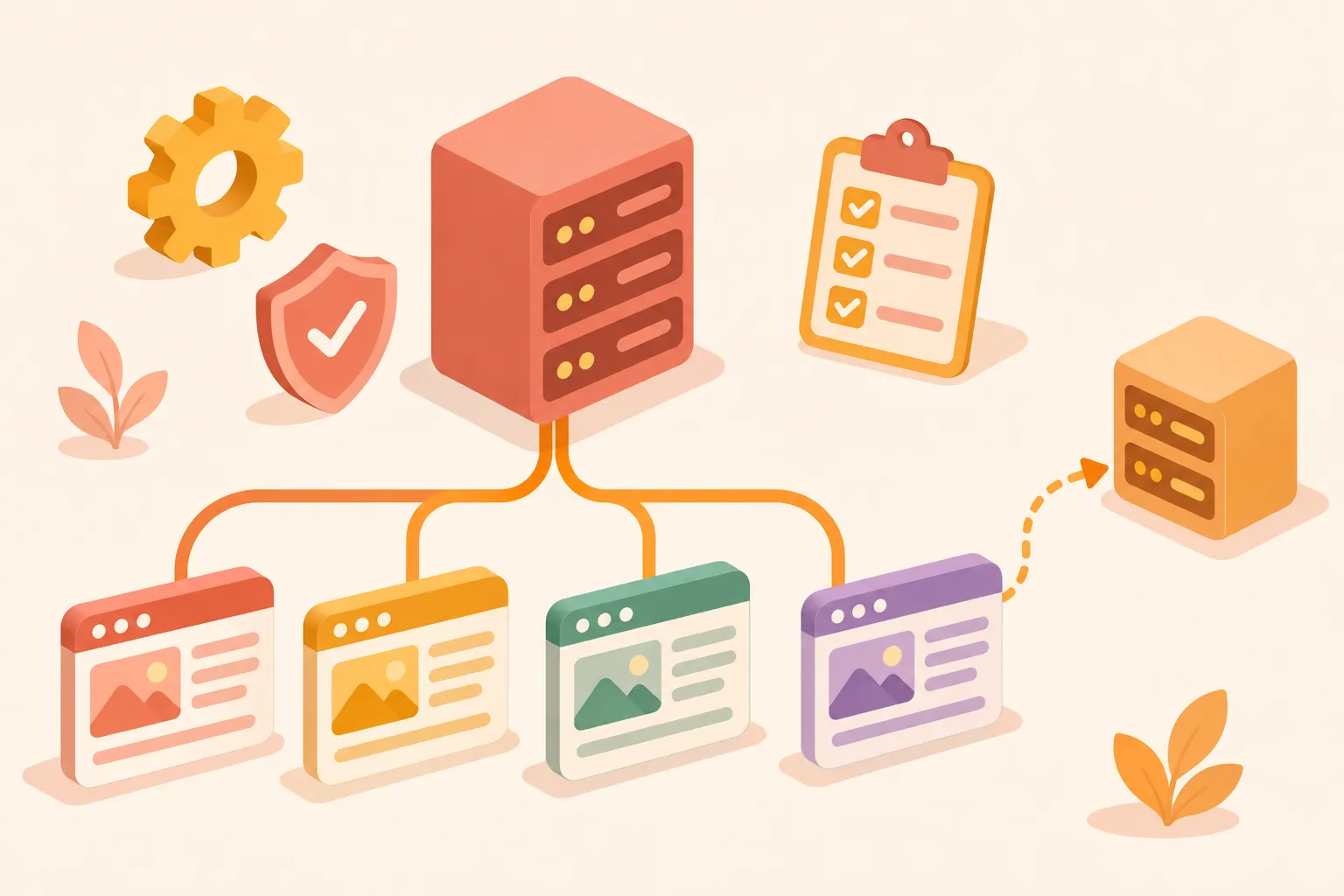
Multisite is a built-in WordPress feature. You enable it in an existing installation and then run several websites on one shared WordPress core, shared plugins and themes and one shared database. Each site has its own posts, pages, media and settings. The WordPress handbook on network administration describes the consequences that matter day to day:
- Users live in shared tables. One account is valid across the network, but it only gets access to a site once it has a role on that site.
- Only the network administrator, called "Super Admin" in WordPress, installs plugins and themes. Administrators of individual sites cannot, and they cannot edit user profiles either.
- A theme is installed for the whole network. If you change its code, you change it for every site that uses it.
- Media of every additional site are stored under
/wp-content/uploads/sites/in a folder named after the site's number.
The sites do not share content. A post on the Swiss site does not appear on the German one by itself. If you want that, you need a plugin for it.
Multisite or separate installations
The real question is almost always this: one network for everything, or every website as its own WordPress installation, maintained through a shared tool for updates and backups? For the most common situations, this is what I recommend:
| Your situation | My recommendation |
|---|---|
| Country or location sites with the same structure and one editorial team | Multisite |
| Several brands of one company, same theme, own domains | Multisite with its own domain per site |
| Many sites built the same way for branches, institutes or local groups | Multisite |
| One website in two or three languages | Usually one installation with a language plugin |
| An agency's client sites that will later be handed to the clients | Separate installations |
| Website plus online shop with its own plugins | Separate installations |
| Sites of different companies or owners | Separate installations |
The WordPress developers themselves advise caution. If you plan sites that are strongly interconnected, share data or share users, a network might not be the best solution, according to the chapter Before You Create A Network. If parts of a website only need to look different, or different groups should see different content, the handbook says a single site with a suitable plugin is often enough.
When a network pays off
The gain is in maintenance. You install a plugin update once instead of ten times, and a new location site is up quickly because theme, plugins and basic settings are already in place. Anyone working on several sites has one account instead of many.
That holds as long as the sites really belong together. Examples where I recommend a network:
- A company with sites for Germany, Austria and Switzerland, built the same way but with their own contacts and their own copy per country.
- A university or an association that gives each institute or local group a site in the shared design.
- An intranet for several locations where each branch maintains its own news. What matters for securing it is covered in the guide WordPress as an Intranet.
- Campaign or product sites of one brand that all follow the same pattern.
When separate installations are better
A network also shares the risks. A faulty plugin update or a fatal PHP error hits every site at once. A plugin that only one site needs still sits in the whole network and has to get along with all the others. According to the handbook, not all plugins in the directory work in a network, and some only work when they are network-activated.
Then there are permissions. Whoever is responsible for a site in the network but is not a Super Admin cannot install plugins. For a subsidiary with its own IT, or a client who wants to keep developing their website, that is too restrictive.
Moving out is the most expensive part. A single site cannot be taken out of a network with one click; more on that below. For agencies' client projects I therefore usually recommend separate installations, even if a network looks more convenient at the start. How I support agencies in the background is described on my page WordPress for agencies.
Several languages or countries: network or language plugin?
For a website in two or three languages you do not need a multisite. A language plugin such as Polylang, active on more than 900,000 websites according to the plugin directory, manages the translations in a single installation. Every language then has the same plugins and the same technology, which is usually what you want.
A network fits better when the country sites differ in more than language: their own domains such as .de, .at and .ch, their own content, contacts and legal texts, one editorial team per country. Then each country gets its own site in the network. So that Google recognises the versions as counterparts, you connect them with hreflang annotations, either through a plugin built for networks or with a few lines in the theme. According to Google Search Central, alternate URLs do not need to be on the same domain. For German-speaking users in Switzerland, Google gives the code de-CH as an example there.
What has to be settled before you start
Some decisions can only be changed later with a lot of effort. The WordPress handbook lists these points:
- Subdomains or subdirectories: the sites live either at
location.example.comor atexample.com/location/. Switching later is an advanced operation according to the handbook, because addresses, DNS, certificates, redirects and cookies do not change by themselves. - The age of the installation: if your website has been running for more than a month, WordPress does not offer the subdirectory option, because it can collide with existing permalinks.
- The
/blog/in the addresses: with subdirectories, posts on the main site get a/blog/in their address, pages do not. For an existing website with established post URLs that means planning redirects. - With or without www: decide this before the conversion. Changing it afterwards takes much more work.
- The server: multisite needs rewrite rules, so on Apache mod_rewrite and an .htaccess that allows them. For subdomains, the server has to route all names to the same installation, for example via a wildcard subdomain. Basic shared hosting cannot always do this, so ask your host first.
Own domains for individual sites, so brand-b.com instead of brand-b.example.com, have worked without an extra plugin since WordPress 4.5. Once DNS and the server route the domain to the installation, you enter it in the network as the site's address. Every domain needs its own SSL certificate so that the login is encrypted as well (handbook on domain mapping).
How the network is set up
The setup itself is short. According to the handbook guide, you first back up the database and files completely, deactivate all plugins and add the line define( 'WP_ALLOW_MULTISITE', true ); to wp-config.php. The item Network Setup then appears under Tools. There you choose subdomains or subdirectories, WordPress shows you the lines for wp-config.php and .htaccess, you add them and log in again.
I never set up a network directly on the live site, but first on a copy with the same server configuration. That shows which plugins cause trouble in the network and which old addresses need a redirect.
Maintaining a network
In a multisite, updates always affect every site. That is why I test them on a staging copy of the whole network, not just the main site, and back up the shared database completely. A backup of individual sites does not help much when the whole network has to go back to an earlier state. Before every new plugin I check whether it supports multisite and whether it has to be activated per site or for the network.
The order of updates is the same as for a single website: backup, plugins, theme, WordPress, then checks. The details are in the guide Installing WordPress updates the right way. If you want someone to take care of this permanently, I do that as WordPress support, for a network just as for a single website.
Taking a site out of the network
Sooner or later a site wants out: it is sold, moves to another host or needs plugins that cause trouble in the network. WordPress has no built-in way to do this. The handbook already calls moving a whole network more complicated than moving a single install. When separating a site, I work through these steps:
- Create an empty WordPress installation with the same WordPress version on the target server.
- Export the site's tables from the shared database. They carry the site's number in their name, for example
wp_5_posts, and get the normal prefix in the new installation. - Take over the users who have a role on this site. They live in the shared tables and do not come along with the site's export.
- Move the media from the site's numbered folder under
/wp-content/uploads/sites/to/wp-content/uploads/and replace the paths in the database. - Install only the theme and plugins the site actually uses, and check settings that used to be set centrally in the network.
- If the domain changes: set up redirects and register the new address in Search Console.
How long this takes depends mainly on the number of plugins and users and on the central settings that have to be rebuilt in the new installation. If you already know at the start that a site might go its own way later, separate installations from day one save you this work.