Blog · October 4, 2023
Set, Change, and Test a WordPress Favicon in 4 Steps
Set, change and test your WordPress favicon in 4 simple steps – a complete guide including the cache test for correct display.
Summary
These four steps are necessary to change the WordPress favicon:
- Log in to WordPress as an administrator
- Click on "Appearance > Customizer"
- Change the icon under "Site Identity > Site Icon"
- To test, clear the website cache or open it in an incognito tab
In the following, I explain the steps, best practices, and background information once again in detail.
What is a favicon
A favicon is a small symbol or icon that represents a website. It is displayed in the browser's address bar next to the website's URL. This small icon helps users quickly identify your website among a row of open tabs.

When you have several tabs open in your browser, the favicon is the small image that appears in each tab next to the page title. It is a visual cue that makes it easier to switch between different websites. A well-designed favicon improves the user experience and strengthens brand identity.
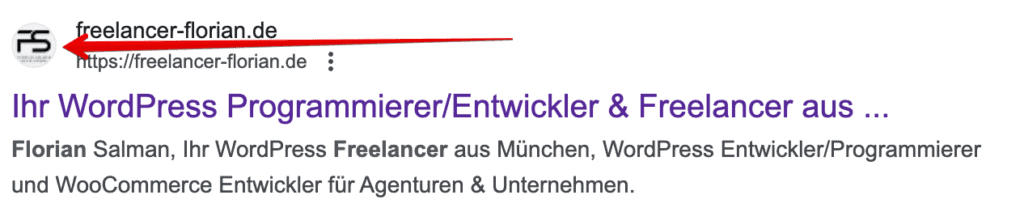
In addition to appearing in browser tabs and the address bar, the favicon is also displayed in Google search results. When someone searches for your website, the favicon will appear next to your page's title and description in the search results. This increases the visibility and recognizability of your brand.
Favicon requirements
Favicon sizes
The size of the favicon is a decisive factor for its effectiveness. The most commonly used sizes are 16×16, 32×32, and 48×48 pixels. However, some modern browsers also support larger favicons optimized for Retina displays. In any case, the format should always be square.
WordPress suggests a size of at least 512×512 pixels to ensure that the icon looks good on all devices.
Favicon file format
The file format is another important aspect when creating a favicon. The most common formats are .ico, .png, and .jpg. The .ico format is the traditional and most widely used one, but .png offers more flexibility in terms of transparency.
Favicon design best practices
In addition to size and format, you should also carefully choose the color palette and design of the favicon. It should fit well with your website's design and your brand identity. A poorly designed favicon can leave a negative impression, while a well-designed favicon can improve the user experience.
Changing the WordPress favicon via the Customizer
Even though there are plugin alternatives with which you can change the WordPress favicon, you should follow the best practices and stick to implementation via the Customizer. Too many plugins have a negative impact on security and performance.
Log in to WordPress
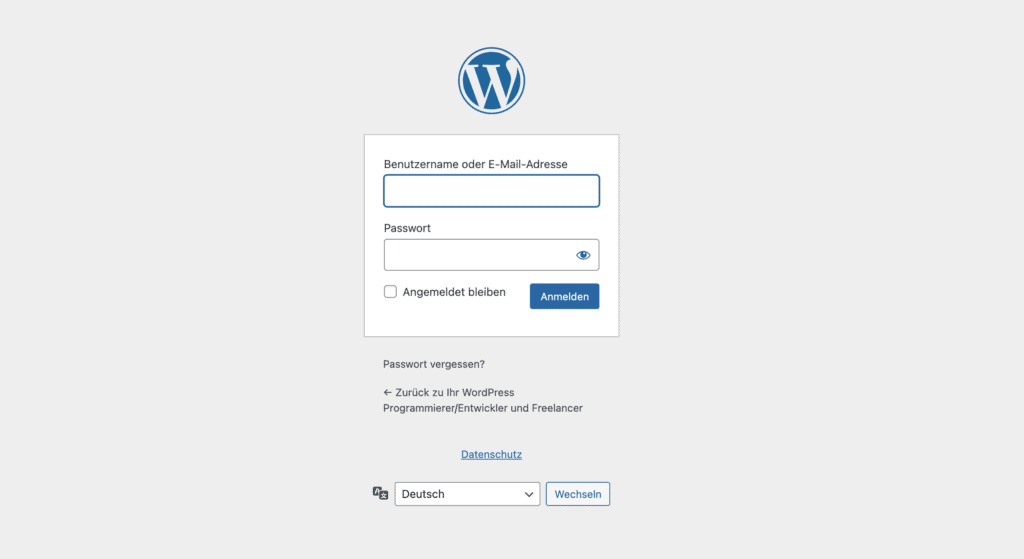
Log in to your WordPress dashboard. You need administrator rights to make these changes.
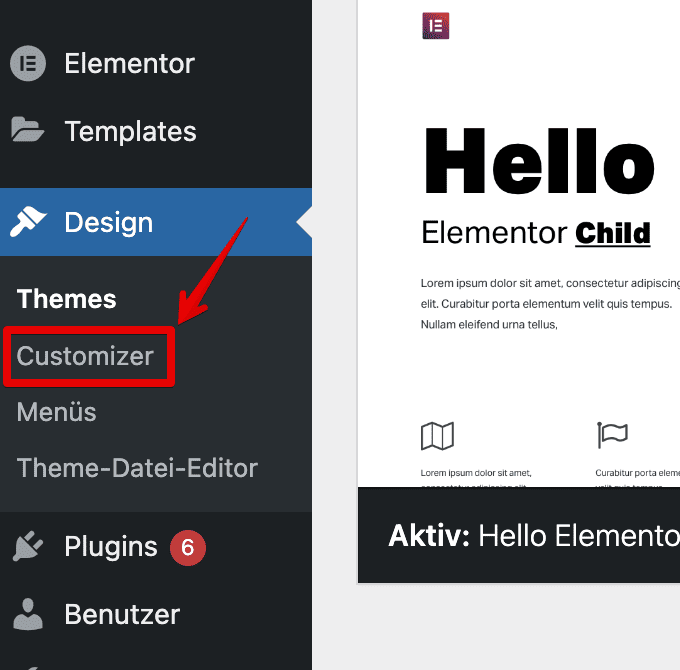
In the WordPress backend, click on "Appearance > Customizer"
In the dashboard menu, navigate to the "Appearance" section and select the "Customizer" option there. This opens the WordPress Customizer, a powerful tool that offers a live preview of your changes. Here you can adjust various aspects of your website, including the favicon.
In the Customizer, replace it under "Site Identity > Site Icon"
In the Customizer, you will find various settings options on the left side. Scroll down to the "Site Icon" section and click on it. Here you will see the "Site Icon" option, where you can upload your new favicon. Click on "Add" or "Change" to select a new image or replace an existing one.
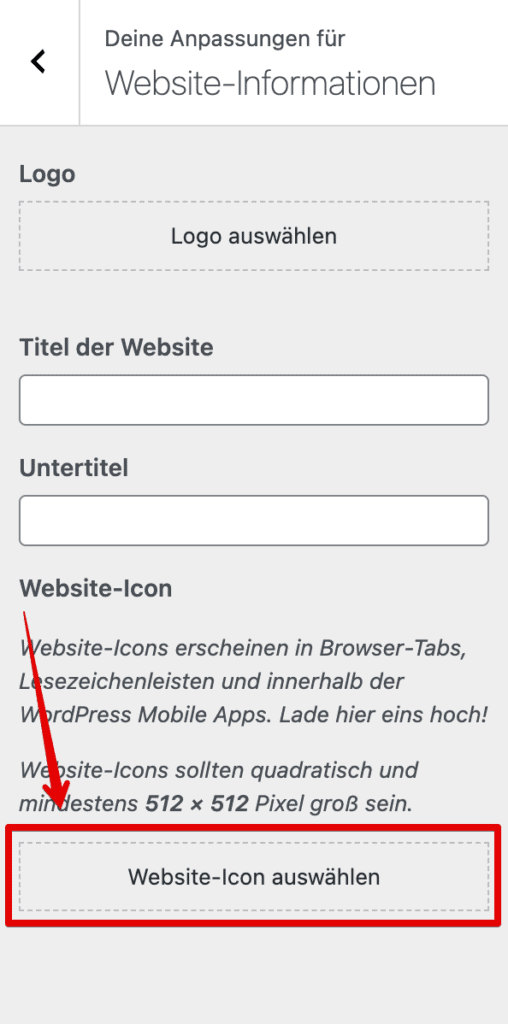
After you have selected the desired image, click on "Publish" to save the changes. Your new favicon should now be visible on your website.
Testing the favicon
After you have added your new favicon in WordPress, it is important to check whether it is displayed correctly. The browser has most likely cached the old favicon. For this reason, the website must be reloaded with an empty cache. There are two ways to do this.
Clear the cache
To ensure that the new favicon is displayed, clear the browser cache via the settings or history of your browser.
Use an incognito tab
First, close all open incognito windows. Now open a new incognito window in your browser to see the most current favicon without any cache influence.
Make your favicon special
Use a different favicon on mobile
A separate favicon for mobile devices can improve the user experience on smaller screens.
Use an animated favicon
An animated favicon, usually in GIF format, adds dynamism to your website. Depending on the browser, however, it is sometimes displayed as a static image and sometimes as an animation.
For both of these unique favicon features, you can use the "All-in-One Favicon" plugin.
Frequently asked questions about favicons
Where do I find the favicon in WordPress?
You will find the favicon setting in the WordPress backend under "Appearance" and then "Customize." There is an option called "Site Identity" where you can change the "Site Icon."
Why is my favicon not showing?
If your favicon is not displayed, there can be several reasons. Check whether the file size and format are correct, and clear the browser cache to make sure the latest version is loaded.
How do I change the favicon for mobile devices?
As a rule, the favicon you set for your website is also displayed on mobile devices. Some themes, however, offer special options for mobile favicons that you can find in the Customizer.
Is a favicon important for SEO?
Although a favicon is not directly important for SEO, it does contribute to the user experience. An appealing favicon can increase the click-through rate and thus indirectly improve SEO performance.
Can I use animated favicons?
WordPress does not support animated favicons by default. However, there are plugins that can add this functionality if you want to use an animated favicon.
Do I need to use a plugin to add a favicon?
No, a plugin is not necessary to add a favicon in WordPress. WordPress offers a built-in option in the Customizer under "Site Settings" -> "Site Icon."
How do I remove the WordPress logo?
If you want to remove the default WordPress logo that serves as a favicon, you can do so in the Customizer under "Site Identity" -> "Site Icon." Simply upload your own favicon to replace the WordPress logo.